- Confirm the Chatbot Is Actually Enabled
- Verify Display Location and Scope
- Logged-In vs Logged-Out Behavior
- Check Whether the Script Is Loading at All
- Caching and Optimization Plugins Can Block the Chatbot
- Page Builders and Custom Themes Need Special Attention
- HTTPS, Mixed Content, and CSP Issues
- Chatbot May Be Disabled on Mobile or Specific Devices
- Conflicts With Other Chat or Popup Plugins
- Rare Case: Chatbot Loads but Immediately Hides
- Final Diagnosis Mindset
This guide helps you diagnose situations where the Aimogen chatbot is enabled but does not appear on the site. No widget, no launcher, no errors visible to visitors. This is almost always a display, condition, or frontend execution issue rather than an AI or API problem.
If the chatbot does not render, it never gets a chance to work.
Confirm the Chatbot Is Actually Enabled #
The most common cause is the simplest one.
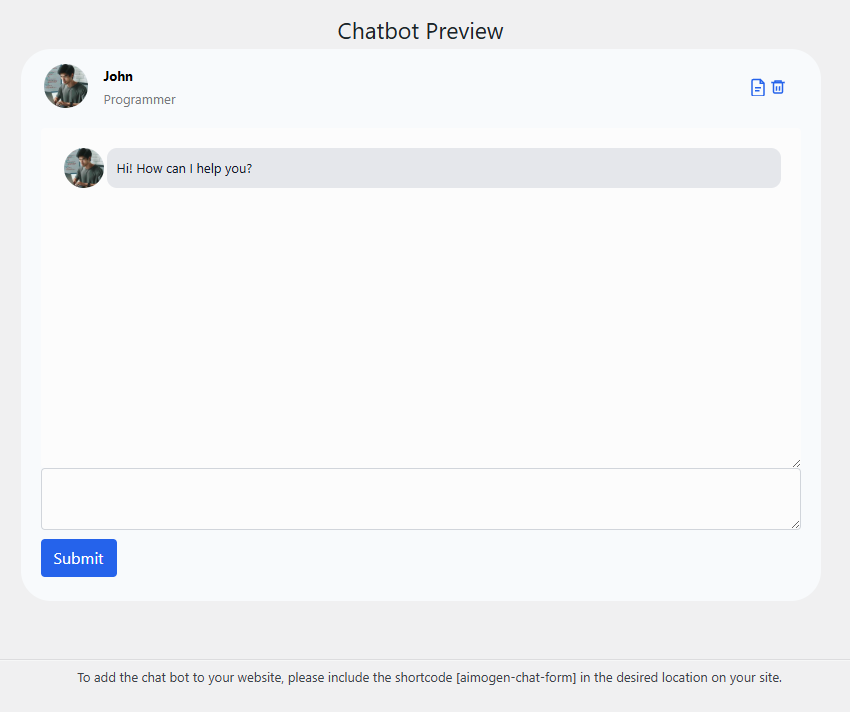
Aimogen chatbots are usually created, configured, and then explicitly enabled. Creating a chatbot does not always make it live. Check that the chatbot status is active and not paused, archived, or limited to draft mode.
Also confirm that you are editing the correct chatbot. On sites with multiple bots, it’s easy to configure one and expect another to appear.
Verify Display Location and Scope #
A chatbot can be enabled and still never show if its display rules exclude the current page.
Check where the chatbot is configured to appear. Site-wide, specific post types, specific URLs, or conditional rules based on page context all matter.
If display conditions exist, temporarily switch the chatbot to appear everywhere for testing. If it suddenly shows up, the issue is not the chatbot itself but the targeting logic.
Pay special attention to homepage settings. Homepages built with page builders or set as static pages are often excluded unintentionally.
Logged-In vs Logged-Out Behavior #
Many chatbot setups behave differently for administrators.
Some chatbots are configured to hide for logged-in users, or only appear for visitors. Others are restricted to certain roles.
Always test in an incognito window or logged out session. A chatbot that works for visitors but not for admins is behaving exactly as configured.
If it works only when logged in, caching or script loading is likely involved.
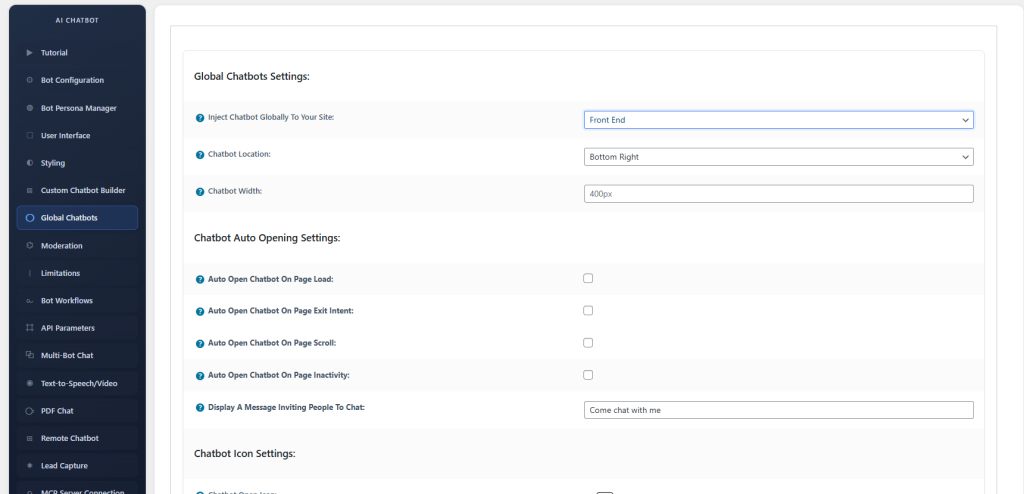
If you enable Global Chatbots, you can select where and how the chatbot will be displayed globally on your site:
Check Whether the Script Is Loading at All #
If the chatbot does not appear anywhere, inspect the frontend.
Open the page source or browser developer tools and look for Aimogen-related scripts. If the script is missing entirely, the issue is server-side or configuration-related.
If the script is present but the chatbot still does not appear, check the browser console for JavaScript errors. One unrelated JS error can prevent the chatbot from initializing.
Errors from themes, page builders, or other plugins commonly block chat widgets.
Caching and Optimization Plugins Can Block the Chatbot #
Aggressive caching and optimization frequently break chat widgets.
JavaScript minification, deferral, combination, or delayed loading can prevent Aimogen from initializing at the right time. The chatbot script may load too late or not at all.
If you use a caching or performance plugin, temporarily disable it and reload the page. If the chatbot appears immediately, add an exclusion for Aimogen scripts.
Do not cache chatbot HTML output or inline initialization code. Chatbots are interactive and stateful by nature.
Page Builders and Custom Themes Need Special Attention #
Some themes and page builders strip footer hooks or modify script loading behavior.
If Aimogen injects the chatbot via standard WordPress hooks and your theme does not call them correctly, the chatbot will never render.
Switch temporarily to a default theme and test. If the chatbot appears, the issue is theme-related, not Aimogen-related.
Custom headers, footers, or headless setups often require manual script placement.
HTTPS, Mixed Content, and CSP Issues #
If your site runs on HTTPS, all chatbot assets must load over HTTPS.
Mixed content warnings can silently block scripts. Content Security Policy headers can also prevent external scripts from executing.
Check the browser console for blocked resources or CSP violations. If present, you need to explicitly allow Aimogen’s scripts and endpoints.
This is especially common on sites with strict security headers.
Chatbot May Be Disabled on Mobile or Specific Devices #
Some chatbots are configured to hide on mobile, tablet, or small screens.
If the chatbot appears on desktop but not on mobile, check device-based visibility rules. Also check CSS. Some themes hide fixed-position elements on small viewports.
Test across devices before assuming a global failure.
Conflicts With Other Chat or Popup Plugins #
Multiple chat widgets rarely coexist peacefully.
If another chat, popup, or customer support widget is active, it may be hiding, overlapping, or blocking the Aimogen chatbot.
Disable other widgets temporarily and test again. Z-index conflicts are common and make chatbots appear “missing” when they are actually rendered off-screen.
Rare Case: Chatbot Loads but Immediately Hides #
In some setups, the chatbot initializes and then immediately hides due to a JavaScript condition.
This can happen if Aimogen is waiting for a page event that never fires, or if a condition evaluates incorrectly due to missing data.
Watching the page load in slow motion using browser dev tools can reveal this. If the widget flashes briefly and disappears, this is almost always a frontend logic issue.
Final Diagnosis Mindset #
When a chatbot does not appear, assume display logic before assuming AI failure.
Chatbots live entirely on the frontend. If scripts do not load, initialize, or render cleanly, nothing else matters. API keys, prompts, and automation are irrelevant until the widget exists on the page.
Once the chatbot reliably appears everywhere it should, actual chatbot behavior becomes easy to debug. Until then, focus entirely on visibility, scripts, and conditions.


