- What Logs Actually Tell You (And What They Don’t)
- Know Which Logs Matter for Aimogen
- Enable WordPress Debug Logging Safely
- Enable Aimogen Logging (If Available)
- Read Logs Chronologically
- Learn the Difference Between Errors, Warnings, and Info
- Silent Failures Always Leave a Trace
- Correlate Logs With Time
- Filter Out Noise
- When Logs Point Outside Aimogen
- Clean Up After Debugging
- Final Mindset
This guide explains how to use logs to diagnose Aimogen issues correctly. Logs are not optional tooling. They are the ground truth. When something feels random, silent, or inconsistent, logs almost always already contain the explanation.
Most troubleshooting mistakes happen because logs are ignored, misread, or never enabled.
What Logs Actually Tell You (And What They Don’t) #
Logs do not tell you how to “fix” something. They tell you what actually happened, in the order it happened.
They answer questions like:
Did Aimogen run at all?
Which step executed last?
Was the action blocked, skipped, retried, or aborted?
Did the API respond, or was it never reached?
They do not explain intent or configuration choices. They simply record reality. That makes them far more reliable than UI feedback.
Know Which Logs Matter for Aimogen #
Aimogen issues typically surface in three places:
WordPress debug logs
Aimogen’s internal logs (if enabled)
Server-level error logs
UI messages are secondary. If something fails silently, it will almost never explain itself in the interface.
If you only look at the admin screen, you are missing most of the system.
Enable WordPress Debug Logging Safely #
If WordPress debug logging is disabled, you are troubleshooting blind.
Enable logging, but never display errors publicly on a live site. Errors should be written to a log file only.
Once enabled, reproduce the issue once. Do not spam actions. One clean reproduction produces cleaner logs.
After debugging, disable logging again or rotate logs. Leaving debug logs on permanently creates noise and performance overhead.
Enable Aimogen Logging (If Available) #
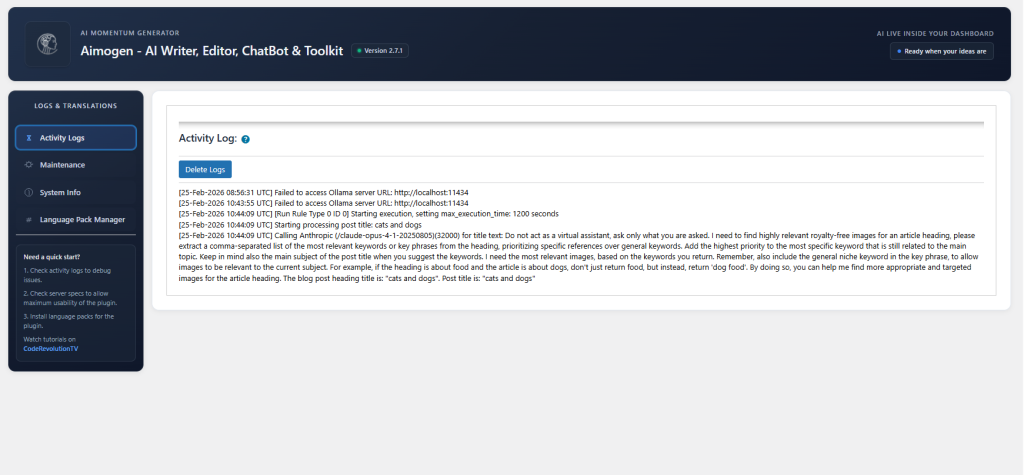
Aimogen often includes its own logging layer. Go to ‘Logs & Translations’ menu -> ‘Activity Logs’ tab -> check your logs there.
This is where you’ll find messages like:
Generation skipped due to rule
Limit reached, execution aborted
Campaign paused
API request prepared
Retry scheduled
These messages are far more useful than generic PHP warnings.
If Aimogen logging is configurable, set it to a level that captures decisions, not just fatal errors. You want to see why something didn’t run, not only when it crashed.
Read Logs Chronologically #
The most common mistake is scrolling to the bottom and reacting to the last error.
Instead, find the moment you triggered the action and read forward from there. Logs are a timeline. Skipping around breaks causality.
Very often, the real cause appears before the obvious error. A skipped condition, a failed permission check, or a missing input will show up earlier and explain everything that follows.
Learn the Difference Between Errors, Warnings, and Info #
Not everything in a log is bad.
Errors usually stop execution.
Warnings often indicate degraded behavior.
Info messages explain decisions.
Aimogen relies heavily on informational logs. Messages like “skipped,” “blocked,” or “deferred” are not failures. They are outcomes.
If you treat every log entry as a problem, you’ll chase ghosts.
Silent Failures Always Leave a Trace #
When Aimogen “does nothing,” something still happened.
Either:
Execution never started
Execution was blocked early
Execution aborted cleanly
Execution retried and stopped
All four scenarios leave logs.
If you see nothing at all, the issue is higher-level: cron not firing, hooks not running, or logging disabled. That itself is a diagnostic result.
No logs means nothing executed.
Correlate Logs With Time #
Always match log timestamps with your actions.
If you clicked a button at 14:32 and the last relevant log entry is from 13:10, Aimogen didn’t run. If entries appear minutes later, cron or background execution delayed it.
Time correlation often reveals scheduling, caching, or execution context issues instantly.
Filter Out Noise #
WordPress logs are noisy.
Deprecation notices, unrelated plugin warnings, and PHP notices can drown out relevant entries. Learn to skim.
Search for:
Aimogen-specific prefixes
Keywords like generate, skip, block, cron, limit, retry
Timestamps matching your test
Ignore everything else until proven relevant.
If someone says “the AI failed,” logs can show whether the API was called.
If someone says “automation is broken,” logs can show whether cron ran.
If someone says “nothing happened,” logs can show whether it was blocked intentionally.
This turns vague complaints into actionable facts.
When Logs Point Outside Aimogen #
Sometimes logs show that Aimogen behaved correctly and something else failed.
Common examples:
Outbound request blocked by firewall
Cron execution killed by server limits
Database query failed due to corruption
REST request blocked by security plugin
At that point, Aimogen is no longer the problem. The logs have done their job.
Clean Up After Debugging #
Once the issue is resolved:
Disable verbose logging
Clear oversized log files
Document the fix
Leaving debug logging enabled permanently creates performance issues and makes future debugging harder, not easier.
Logs are tools, not decorations.
Final Mindset #
If you are not reading logs, you are guessing.
Aimogen is deterministic. It follows rules, checks conditions, and records decisions. When something goes wrong, the explanation is almost always already written down.
The fastest way to fix problems is not more configuration changes or prompt tweaks. It’s learning to trust logs over intuition.
Once you do, troubleshooting stops being frustrating and starts being mechanical.


