- Where to Find the Status Screen
- What the Status Screen Checks
- Environment Checks
- AI Provider Status
- Licensing & Update Status
- Execution & Cron Health
- Logs & Recent Errors
- Limits & Quotas Overview
- Diagnostics Tools
- How to Use the Status Screen Effectively
- Common Issues Revealed by Diagnostics
- Sharing Diagnostic Information
- What the Status Screen Does Not Do
- Best Practices
The Aimogen Status and Diagnostics system exists to give you visibility into how the plugin is behaving internally. Because Aimogen relies on external APIs, background execution, and server resources, silent failures are not acceptable. The status screen is designed to surface problems early and provide actionable information before they affect content generation or user-facing features.
This document explains what the status system monitors, how to interpret warnings and errors, and how to use diagnostics when troubleshooting.
Where to Find the Status Screen #
You can access the status and diagnostics panel from the WordPress admin at:
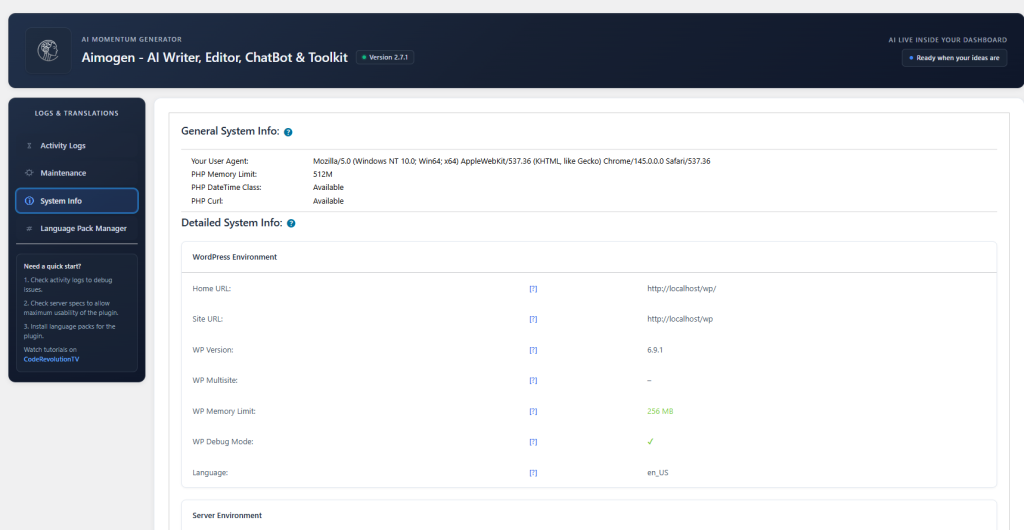
Aimogen → Logs & Translations -> System Info
This screen is read-only. It does not change configuration or trigger AI calls.
What the Status Screen Checks #
The status screen is divided into several sections, each focusing on a different layer of the system.
Environment Checks #
These checks validate whether your server environment can reliably run Aimogen.
Monitored values include:
- WordPress version
- PHP version
- PHP memory limit
- PHP execution time
- HTTPS availability
- File system permissions
- cURL availability
- REST API availability
Results are displayed as:
- OK – meets or exceeds recommended values
- Warning – works but may cause issues
- Error – feature will not function correctly
Warnings do not block usage, but errors usually indicate something must be fixed.
AI Provider Status #
This section reports the state of all configured AI providers.
For each provider, Aimogen checks:
- Whether the provider is enabled
- Whether credentials are present
- Whether the last connection test succeeded
- Whether recent executions failed
If a provider is misconfigured or unreachable, it will be marked accordingly. This allows you to immediately see if failures are provider-related rather than plugin-related.
Licensing & Update Status #
This section shows:
- License type (WPBay or legacy Envato)
- License activation status
- Update eligibility
- Grace period status (if applicable)
If updates are blocked due to licensing, it is clearly indicated here.
Execution & Cron Health #
Aimogen relies on scheduled tasks for automation and delayed processing.
This section checks:
- Whether WordPress cron is running
- When the last scheduled task executed
- Whether any jobs are stuck or overdue
If cron is not firing correctly, bulk generation and automation features may not work as expected.
Logs & Recent Errors #
The status screen surfaces:
- Recent execution errors
- Provider timeouts
- Invalid responses
- Permission or quota issues
This is a summary view. Full logs are available in the dedicated logging section.
Seeing repeated errors here usually means a configuration or environment issue, not random failures.
Limits & Quotas Overview #
This section shows whether:
- Usage limits are enabled
- Any limits were hit recently
- Executions were blocked due to quotas
This is especially useful when AI stops responding but no technical error is visible.
Diagnostics Tools #
The diagnostics area provides safe testing tools.
Available diagnostics include:
- Provider connection tests
- REST API loopback tests
- File system write tests
- Sample execution tests (non-destructive)
These tools do not create posts or modify content. They are meant to confirm that required systems respond correctly.
How to Use the Status Screen Effectively #
When something doesn’t work, always check the status screen first.
A good troubleshooting order is:
- Environment section
- Provider status
- Licensing status
- Cron and execution health
- Recent errors
This usually reveals the root cause without guesswork.
Common Issues Revealed by Diagnostics #
The status screen commonly identifies:
- Low PHP memory causing partial responses
- Short execution time killing bulk jobs
- Invalid or expired API keys
- Firewalls blocking outbound HTTPS
- Cron not executing on low-traffic sites
- Limits blocking execution silently
Most of these issues can be resolved without changing Aimogen settings.
Sharing Diagnostic Information #
If you contact support, the status screen provides all the information needed to diagnose issues quickly.
You may be asked to:
- Copy environment values
- Share recent error messages
- Confirm provider status
- Verify cron execution times
This avoids unnecessary back-and-forth.
What the Status Screen Does Not Do #
The status screen does not:
- Modify settings
- Trigger content generation
- Consume API credits
- Fix issues automatically
Its role is visibility and diagnostics, not automation.
Best Practices #
- Check the status screen after installation
- Review it before reporting issues
- Revisit it after server changes or migrations
- Use it when adding new providers or workflows
Aimogen’s diagnostics system exists to make a complex AI-powered plugin predictable and debuggable. If something isn’t working, the status screen almost always explains why.


