- Why Role-Based AI Control Matters
- Understand WordPress Roles Before Configuring Aimogen
- Identify Which AI Features Need Restriction
- Global Aimogen Access Control
- Restrict Content Generation Inside the Editor
- Control Bulk and Automated Actions Separately
- Limit Prompt Editing and System Instructions
- Restrict Image Generation and Media Creation
- Enforce API Budget and Usage Limits by Role
- Use WordPress Hooks for Advanced Control
- Test With Real Accounts, Not Assumptions
- Common Mistakes to Avoid
- Final Thoughts
This guide explains how to control who can access, configure, and execute AI features in Aimogen based on WordPress user roles. The purpose is not just security. Proper role restriction prevents accidental misuse, protects API budgets, and keeps automated systems stable in multi-author environments.
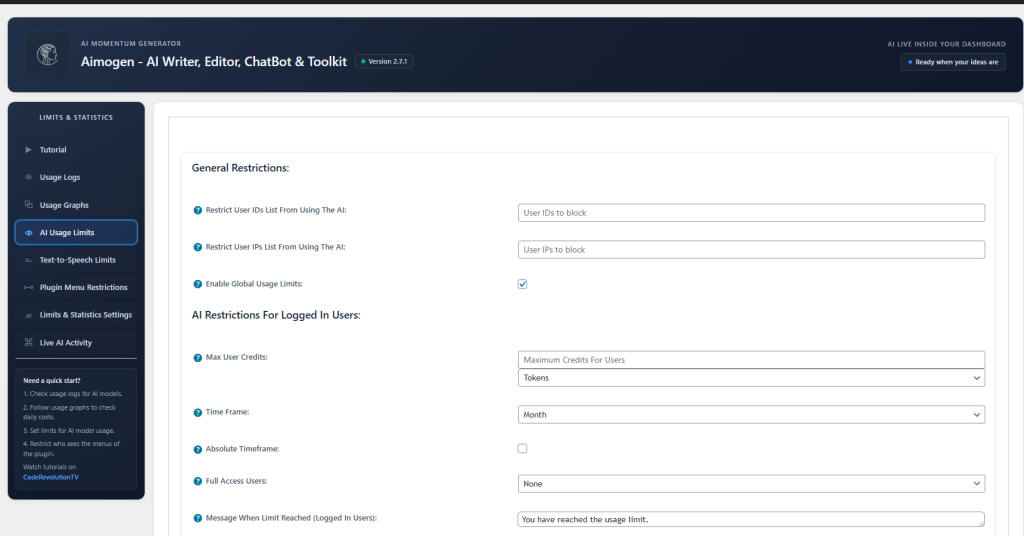
Everything here assumes Aimogen is already installed and active. Go to the ‘Limits & Statistics’ -> ‘AI Usage Limit’ tab of the plugin, you will find there options which will help you.
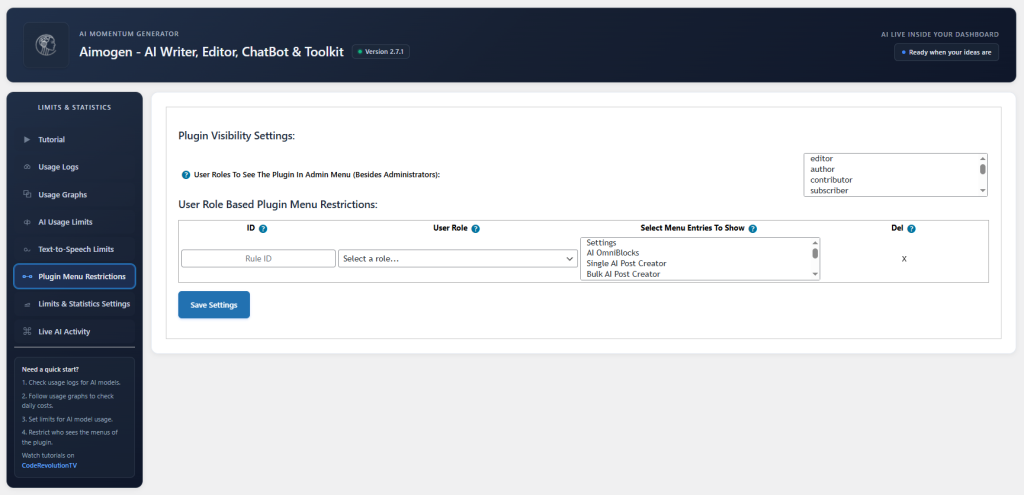
You can also restrict plugin menus, in the ‘Plugin Menu Restrictions’ tab:
Why Role-Based AI Control Matters #
AI features are powerful and expensive. If every logged-in user can trigger generation, modify prompts, or enable automation, you lose predictability fast.
In a real site, different people have different responsibilities. Editors should review and approve content, not rewrite system prompts. Authors should write, not launch automation pipelines. Administrators should configure providers and budgets, not publish daily posts.
Restricting AI features by role turns Aimogen from a toy into infrastructure.
Understand WordPress Roles Before Configuring Aimogen #
Aimogen builds on WordPress’ role and capability system. If your roles are already chaotic, AI permissions will be too.
Out of the box, WordPress roles roughly behave like this. Administrators control settings and plugins. Editors manage and publish content. Authors write and publish their own content. Contributors write drafts only. Subscribers have no editorial access.
If your site uses custom roles, the same principles apply, but you must think in capabilities, not titles.
Aimogen does not need to reinvent access control. It should attach AI features to capabilities that already exist or to custom capabilities it defines.
Identify Which AI Features Need Restriction #
Before touching settings, decide what actually needs protection.
Some AI actions are harmless, such as suggesting titles or rewriting a paragraph inside the editor. Others are dangerous, such as changing global prompts, running bulk generation, enabling autopublish, or consuming large API quotas.
The key idea is separation of concern. Configuration, execution, and publishing should not automatically belong to the same role.
Write down which roles should be allowed to do what. This becomes your policy, and Aimogen settings should reflect it exactly.
Global Aimogen Access Control #
Open Aimogen settings and locate the access or permissions section. This is where you decide who can see Aimogen at all.
At minimum, only Administrators should be allowed to access provider configuration, API keys, global prompts, budgets, and automation toggles. These settings affect the entire site and should never be exposed to regular authors.
If Aimogen allows you to hide its admin menus per role, enable that. A feature that is invisible cannot be misused.
Restrict Content Generation Inside the Editor #
Many Aimogen features live inside the post editor. This is where fine-grained control matters.
Decide which roles are allowed to generate content at all. On many sites, Authors can generate drafts, Editors can regenerate or refine, and Contributors can only request suggestions without inserting content automatically.
If Aimogen supports per-feature toggles, use them. Paragraph rewriting, outline generation, and summary creation can be allowed, while full post generation can be restricted.
If Aimogen uses WordPress capabilities internally, map generation actions to existing capabilities like edit_posts or publish_posts, or to custom capabilities if provided.
The goal is simple. No one should be able to generate content they are not allowed to publish or review.
Control Bulk and Automated Actions Separately #
Bulk generation and automation are the most sensitive features Aimogen offers.
Only Administrators should be able to create or modify automation campaigns, schedules, and autopublish rules. Editors may be allowed to pause or review automation output, but not to change how the system thinks.
If Aimogen supports role-based locks on campaigns or projects, enable them. A campaign that runs unattended should not be editable by someone who does not understand its consequences.
This single restriction prevents runaway generation, duplicate content, and budget drain.
Limit Prompt Editing and System Instructions #
Prompt editing is equivalent to changing business logic.
Treat system prompts, brand voice definitions, and safety constraints like code. Only trusted roles should be able to edit them.
If Aimogen separates user prompts from system prompts, lock system prompts to Administrators. Editors may be allowed to adjust templates within defined boundaries, but not global instructions.
If prompt editing cannot be restricted directly, wrap it in policy. For example, store prompts as read-only where possible and version them manually.
Restrict Image Generation and Media Creation #
AI image generation can fill your media library very quickly.
Decide who can generate images, who can set featured images automatically, and who can trigger bulk image creation. Editors usually make sense here. Authors often do not.
If Aimogen allows you to set per-role image limits or disable image generation entirely for some roles, use that. Media bloat is harder to clean up than text.
Enforce API Budget and Usage Limits by Role #
If Aimogen exposes usage tracking or budget limits, use them.
High-trust roles can have unlimited access. Lower-trust roles should have caps, whether that is daily, weekly, or per-action.
If role-based budgets are not available, restrict high-cost actions like long-form generation and bulk jobs to administrators only. This achieves the same effect with less complexity.
Use WordPress Hooks for Advanced Control #
If you need stricter enforcement, use WordPress itself.
Aimogen actions ultimately run in WordPress. You can intercept them using hooks and check the current user’s role or capabilities before allowing execution.
A common pattern is to block generation actions for users without a custom capability such as aimogen_generate_content, which you assign only to approved roles.
Another pattern is to allow generation but prevent publishing by automatically reverting posts to draft if the author lacks permission.
This approach keeps Aimogen flexible while letting you enforce your own governance layer.
Test With Real Accounts, Not Assumptions #
After configuring restrictions, test with real users.
Log in as an Author and confirm they cannot see admin settings. Log in as an Editor and confirm they can review but not reconfigure automation. Log in as an Administrator and confirm everything works.
Do not rely on assumptions. One missed capability check can undo all your work.
Common Mistakes to Avoid #
The most common mistake is giving Editors full administrative AI control “for convenience.” This always backfires eventually.
Another mistake is hiding UI without blocking execution. If an endpoint can still be triggered, the restriction is cosmetic.
Finally, avoid role sprawl. The more custom roles you invent without clear boundaries, the harder AI governance becomes.
Final Thoughts #
Restricting AI features by user role is not about distrust. It is about designing a system that behaves predictably under pressure.
Aimogen works best when it mirrors how real editorial teams operate. Clear authority, limited access, and explicit responsibility boundaries turn AI from a liability into leverage.
Once role restrictions are in place, you can safely scale automation knowing that one accidental click won’t rewrite your site or burn your API budget overnight.


