- Why Per-User and Per-Role Limits Matter
- Where User & Role Limits Are Configured
- Role-Based Limits (Most Common Setup)
- User-Based Limits (Overrides)
- Guest User Limits
- Feature-Specific Limits per Role
- Time-Based Limits per Role
- What Happens When a User Hits a Limit
- Limits and Chatbots
- Limits and Content Creation
- Limits and OmniBlocks / Workflows
- Combining Limits Safely
- Monitoring and Adjustment
- What Per-User / Per-Role Limits Do Not Do
- Common Mistakes
- Best Practices
- Summary
Setting usage limits per user or role in Aimogen is how you control who can use AI, how much they can use it, and where, without breaking workflows or blocking legitimate usage. This is essential for public chatbots, membership sites, multi-author setups, and any environment where AI access must be fair, predictable, and cost-safe.
Limits are enforced before any AI call is made.
Why Per-User and Per-Role Limits Matter #
Not all users should have the same AI access.
Typical realities:
- admins need freedom
- editors need controlled access
- subscribers need strict limits
- guests need heavy restrictions
- bots and abuse must be blocked
Per-user and per-role limits let you reflect real-world trust levels in AI usage.
Where User & Role Limits Are Configured #
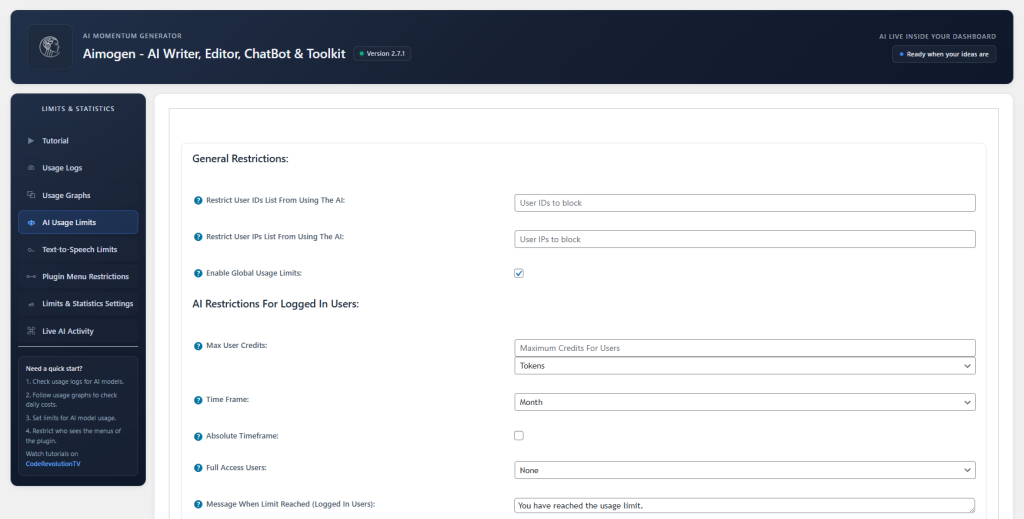
Limits are configured from the Aimogen admin settings.
Path:
Aimogen → Limits & Statistics → AI Usage Limits
From here, you can define:
- limits per WordPress role
- limits for logged-in users
- limits for guests
- feature-specific limits
- time-based limits
No code is required.
Role-Based Limits (Most Common Setup) #
Role-based limits apply to all users with a given WordPress role.
Typical patterns:
- Administrators: unlimited or very high limits
- Editors: moderate limits
- Authors: lower limits
- Subscribers: strict limits
- Custom roles: tailored limits
This scales cleanly and requires minimal maintenance.
User-Based Limits (Overrides) #
User-specific limits can be used to:
- grant extra access to specific users
- restrict a problematic account
- support VIP users
- temporarily raise or lower limits
User limits override role limits when both exist.
Use them sparingly to avoid complexity.
Guest User Limits #
Guests are the highest-risk group.
For guest users, limits typically:
- apply to chatbots
- apply to AI forms
- are time-based
- are much lower than logged-in limits
This protects against scraping, spam, and automated abuse.
Feature-Specific Limits per Role #
Limits can be scoped per feature.
Examples:
- allow editors to generate posts but not images
- allow subscribers to use chatbots but not content creation
- allow admins unrestricted access to Playground
- restrict bulk generators to trusted roles only
This prevents accidental misuse of expensive features.
Time-Based Limits per Role #
Limits can reset:
- per minute
- per hour
- per day
- per month
Example:
- subscribers: 20 chatbot messages per day
- editors: 200 AI actions per day
- guests: 5 messages per hour
Time windows keep usage predictable.
What Happens When a User Hits a Limit #
When a user or role hits a limit:
- the AI action is blocked
- no API call is made
- no cost is incurred
- a clear message can be shown
- the rest of the site continues working
Limits fail safely and cleanly.
Limits and Chatbots #
For chatbots:
- limits apply per user session or identity
- guests are tracked separately
- abuse loops are stopped early
- conversations remain responsive
This is critical for public-facing bots.
Limits and Content Creation #
For content generation and editing:
- limits prevent accidental mass execution
- bulk jobs respect role permissions
- editors cannot exhaust site-wide quotas
Admins remain in control.
Limits and OmniBlocks / Workflows #
Workflows inherit limits from the user or trigger context.
This ensures:
- automated workflows don’t bypass limits
- scheduled jobs remain predictable
- external triggers don’t create runaway usage
Limits apply consistently.
Combining Limits Safely #
A common safe hierarchy:
- global hard limit (absolute ceiling)
- role-based limits (day-to-day control)
- user overrides (exceptions only)
This prevents surprises.
Monitoring and Adjustment #
After setting limits:
- monitor usage logs
- watch for frequent limit hits
- adjust limits based on real behavior
Limits should evolve with usage, not remain static forever.
What Per-User / Per-Role Limits Do Not Do #
They do not:
- change AI quality
- affect non-AI features
- replace provider quotas
- enforce billing plans
- control publishing permissions
They control AI execution only.
Common Mistakes #
- giving guests unlimited access
- setting the same limits for all roles
- forgetting to exempt admins
- relying only on provider quotas
- not monitoring usage after launch
Most AI cost issues come from missing role limits.
Best Practices #
Start restrictive, especially for guests and subscribers. Grant more freedom only where needed. Separate limits by feature type. Monitor usage early. Treat limits as operational safety, not as friction.
Summary #
Setting limits per user or role in Aimogen allows you to control AI usage with precision, matching access levels to trust, responsibility, and cost impact. By combining role-based limits, user overrides, and time-based controls, you can safely expose AI features to the public, teams, or customers without risking abuse or runaway costs.


