- What Usage Logs Record
- Where Usage Logs Are Available
- What Usage Logs Are Used For
- Understanding Log Context
- Provider and Model Visibility
- Limits and Blocked Requests
- Errors vs Failures
- Usage Logs and Cost Analysis
- Logs in Multi-User Environments
- Logs and Automation Debugging
- Retention and Scope
- What Usage Logs Do Not Contain
- Common Mistakes
- Best Practices
- Summary
Usage Logs in Aimogen provide full visibility into how AI is actually being used across your site. They exist to answer concrete operational questions: what ran, when it ran, who triggered it, which provider was used, and whether limits or errors were involved. Usage logs are not analytics fluff; they are an operational audit trail.
They are essential for cost control, debugging, and responsible scaling.
What Usage Logs Record #
Usage logs capture AI execution events, not WordPress actions.
Each log entry typically reflects:
- an AI request attempt
- the feature that triggered it
- the provider and model used
- the execution context
- whether the request succeeded or failed
- whether a limit was hit
- approximate usage metrics
If no AI call happens, nothing is logged.
Where Usage Logs Are Available #
Usage logs are available in the Aimogen admin area.
Path:
Aimogen → ‘Logs & Translations’ menu -> ‘Activity Logs’ tab:
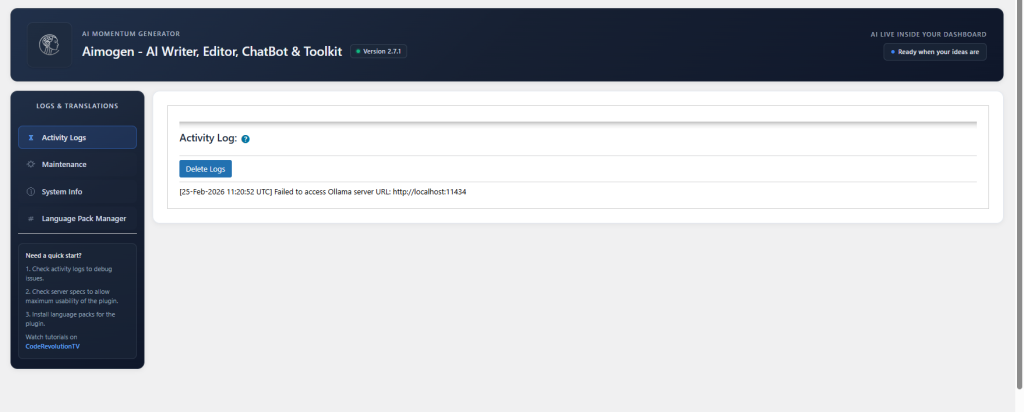
Logs are read-only by design.
What Usage Logs Are Used For #
Usage logs are primarily used to:
- understand real AI usage patterns
- identify cost drivers
- debug failed executions
- diagnose limit-related issues
- detect abuse or automation loops
- validate that limits are working
- audit AI usage in multi-user setups
They are operational tools, not marketing reports.
Understanding Log Context #
Each log entry is tied to a context, such as:
- single post generation
- bulk post generation
- AI Content Editing
- chatbot interaction
- image generation
- form submission
- Playground execution
- OmniBlocks workflow
- scheduled or automated runs
Context tells you why the AI was called.
Provider and Model Visibility #
Usage logs clearly show:
- which provider handled the request
- which model was selected
- whether a fallback provider was used
This is critical when multiple providers are enabled and costs vary significantly between them.
Limits and Blocked Requests #
Usage logs also record blocked attempts.
If a request was blocked because:
- a usage limit was reached
- a role restriction applied
- a provider was disabled
- a model was restricted
The log reflects that no API call was made.
This is important for verifying that cost controls are working as intended.
Errors vs Failures #
Usage logs distinguish between:
- blocked executions (prevented by limits)
- provider errors (API-level issues)
- configuration issues (missing keys, invalid setup)
- execution failures (timeouts, malformed requests)
This prevents guessing why something “didn’t work”.
Usage Logs and Cost Analysis #
While logs are not invoices, they allow you to:
- see which features generate the most usage
- identify expensive models in use
- correlate usage spikes with site activity
- validate bulk job behavior
- detect unexpected Playground usage
Logs are the basis for informed cost decisions.
Logs in Multi-User Environments #
In multi-user setups, logs help you:
- see which roles consume AI
- identify heavy users
- validate role-based limits
- detect misuse or misconfiguration
- justify limit adjustments
Without logs, per-user limits are guesswork.
Logs and Automation Debugging #
For scheduled jobs, OmniBlocks, or background tasks, logs are often the only visibility you have.
They show:
- whether automation actually ran
- whether AI calls succeeded
- where execution stopped
- whether limits intervened
This is critical for unattended workflows.
Retention and Scope #
Usage logs are intended for operational visibility, not permanent archival.
Depending on configuration and environment:
- older logs may be pruned
- very high-volume sites may rotate logs
- logs focus on recent and relevant activity
They are meant to be actionable, not exhaustive forever.
What Usage Logs Do Not Contain #
Usage logs do not:
- store full prompt text
- store generated content
- expose API keys
- log private user data unnecessarily
- replace provider billing dashboards
They balance transparency with safety.
Common Mistakes #
- ignoring logs until something breaks
- assuming provider dashboards are enough
- not checking blocked requests
- overlooking Playground usage
- misinterpreting provider errors as bugs
Most AI “issues” are visible in logs immediately.
Best Practices #
Check usage logs regularly, especially after enabling new features, exposing public chatbots, or running bulk jobs. Use logs to validate limits, tune provider selection, and detect problems early. Treat logs as part of your operational workflow, not as a troubleshooting afterthought.
Summary #
Usage Logs in Aimogen provide a clear, structured record of AI execution activity, showing what ran, why it ran, and whether it was allowed or blocked. They are essential for cost control, debugging, automation monitoring, and responsible scaling of AI features. If usage limits are the guardrails, usage logs are the dashboard that shows whether you’re staying on the road.


